
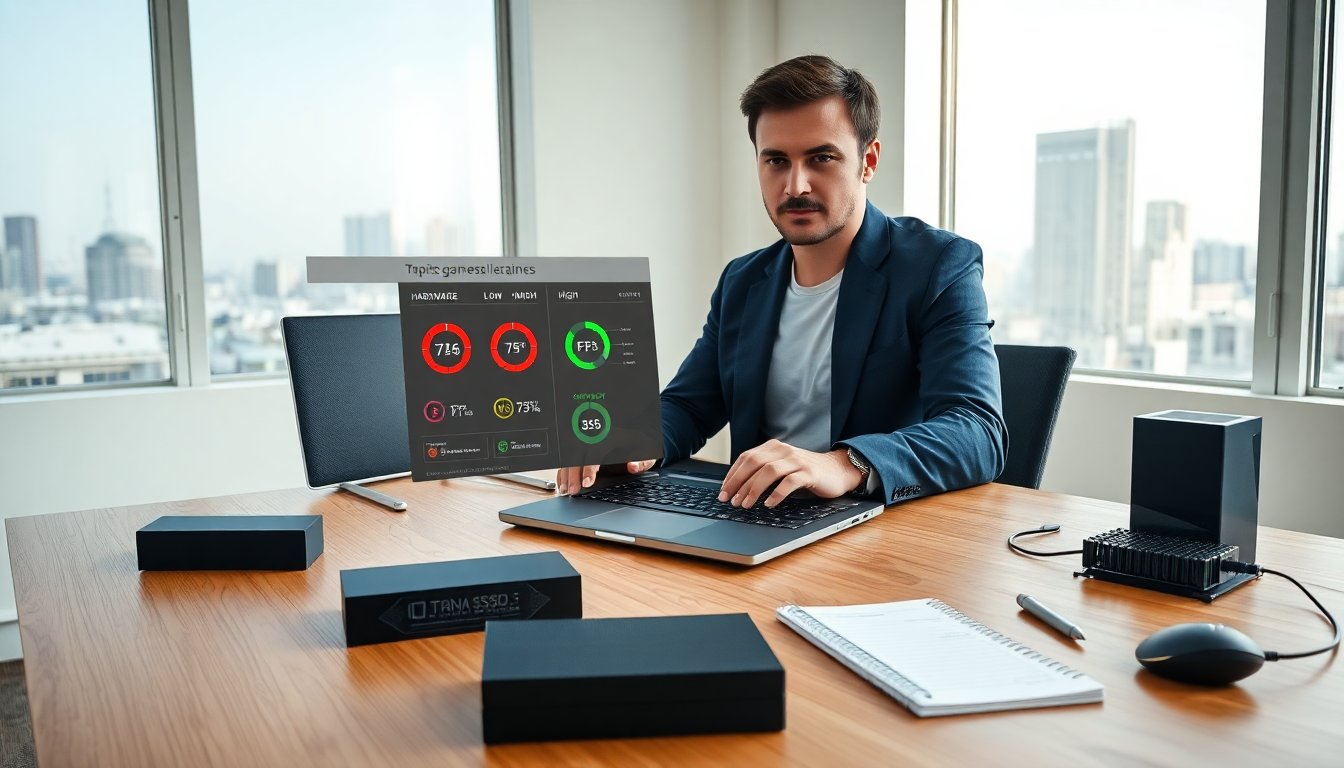
topicsolutions laptop games guide lists current hits and practical tips for laptop players. It shows which games match which hardware. It explains safe settings, maintenance steps, and buying advice. The guide keeps language direct and clear. It helps players pick games, raise FPS, and lower heat without confusion.
Key Takeaways
- Topicsolutions laptop games guide helps players select games suited to low, mid, and high-end laptop hardware for optimal performance.
- Optimizing laptop gaming performance involves closing background apps, updating GPU drivers, setting power plans to high performance, and adjusting in-game graphics settings.
- Maintaining your laptop with regular vent cleaning, thermal paste replacement, and using cooling pads reduces heat and prevents performance throttling.
- Players should balance visual quality and FPS by lowering settings like shadows and textures, enabling frame rate caps, and using features like DLSS or FSR when available.
- Checking system requirements and leveraging cloud gaming can enable low-end laptops to play high-end titles without hardware upgrades.
Top Laptop Games Broken Down By Hardware Level (Low, Mid, High)
Low-end laptops run older and simple titles well. They handle games such as Stardew Valley, Hollow Knight, and Dead Cells. These games use low CPU and GPU power. They use small memory and storage. Players adjust resolution and graphic presets to low. This raises frame rates and keeps temperatures down.
Mid-range laptops handle modern AAA games at medium settings. They run titles like Elden Ring, Cyberpunk 2077, and Forza Horizon 5 at medium settings or with DLSS enabled. These games demand a multicore CPU and a mid-tier GPU. Players set resolution to 1080p and use medium textures. Players enable frame limiters to keep heat and power in check.
High-end laptops run the latest games at high settings and high refresh rates. They handle games such as Microsoft Flight Simulator, Starfield, and Call of Duty: Modern Warfare II. These games use intense GPU and CPU cycles. They need larger memory and fast NVMe storage. Gamers pick laptops with high-refresh screens and effective cooling. They use native resolution and turn on advanced features like ray tracing when they want visual fidelity.
This section helps match games to hardware. It lists choices that suit the laptop specification. It lets players make clear trade-offs between visuals and frame rate. It also guides players who want portability versus raw power. The list covers single-player and competitive multiplayer options. It notes that players can often lower settings to improve performance while keeping core gameplay intact.
The guide mentions indie options that run on low hardware and big titles that require high specs. It advises players to check system requirements before purchase. It reminds them that driver updates and proper storage can change playable status for some titles. It also points out that cloud gaming services let low-end laptops play high-end games if they have a fast internet connection.
How To Optimize Laptop Performance For Gaming Without Upgrading
Players can improve performance with software and settings changes. They close background apps to free CPU and memory. They set the power plan to high performance in the OS. They update graphics drivers and game clients. They use the laptop manufacturer utility to balance fan curves and power draw.
Players clear temporary files and free storage space. They move large media to external drives to keep the SSD healthy. They adjust in-game settings like shadow quality and texture detail. They lower resolution scale when they need higher FPS. They enable performance features such as NVIDIA DLSS or AMD FSR when the game supports them. They run games in exclusive full-screen mode to reduce input lag.
Players monitor thermals with simple tools. They watch CPU and GPU temperatures during gameplay. They avoid blocking vents and place the laptop on firm, flat surfaces. They use a cooling pad when they play extended sessions. They update firmware and BIOS when the manufacturer issues fixes for thermal or power behavior.
Players choose efficient game modes. They use battery-saving only when they need longer runtime. They plug in the power adapter during serious sessions to unlock full performance. They tune visual settings based on the target frame rate. They cap the frame rate to prevent wild temperature swings and power draw.
The section explains simple habits that yield real gains. It notes that consistent maintenance keeps performance stable over time. It shows how small changes add up to higher FPS and lower heat without hardware swaps.
Quick Settings And Maintenance Steps To Boost FPS And Reduce Heat
Close nonessential apps before launching games. This frees CPU and memory. Update GPU drivers every month to gain performance patches. Set the OS power plan to high performance. This allows the system to use full CPU and GPU clocks.
Set in-game graphics to medium or low for shadows and post-processing. Reduce texture quality only if memory limits appear. Turn off V-Sync when testing for raw FPS. Use frame rate caps to keep temperatures stable.
Clean the vents every three months. Dust blocks airflow and raises temperatures. Use compressed air to push dust out from vents. Replace thermal paste every two years if the laptop sees heavy use. This lowers CPU and GPU temperatures.
Use a cooling pad with active fans for long sessions. This helps lower case temperature and reduce throttling. Place the laptop on a flat surface to keep vents clear. Avoid soft surfaces that trap heat.
Uninstall unused programs to free space and reduce background services. Run disk cleanup and defragment only HDDs. Keep the main drive at least 20% free to maintain write performance. Check startup apps and disable those that do not need to run at boot.
This checklist gives clear, actionable steps. It focuses on tasks that any player can perform. It avoids complex tools and keeps the routine simple. It helps lower heat, raise FPS, and extend the laptop life.