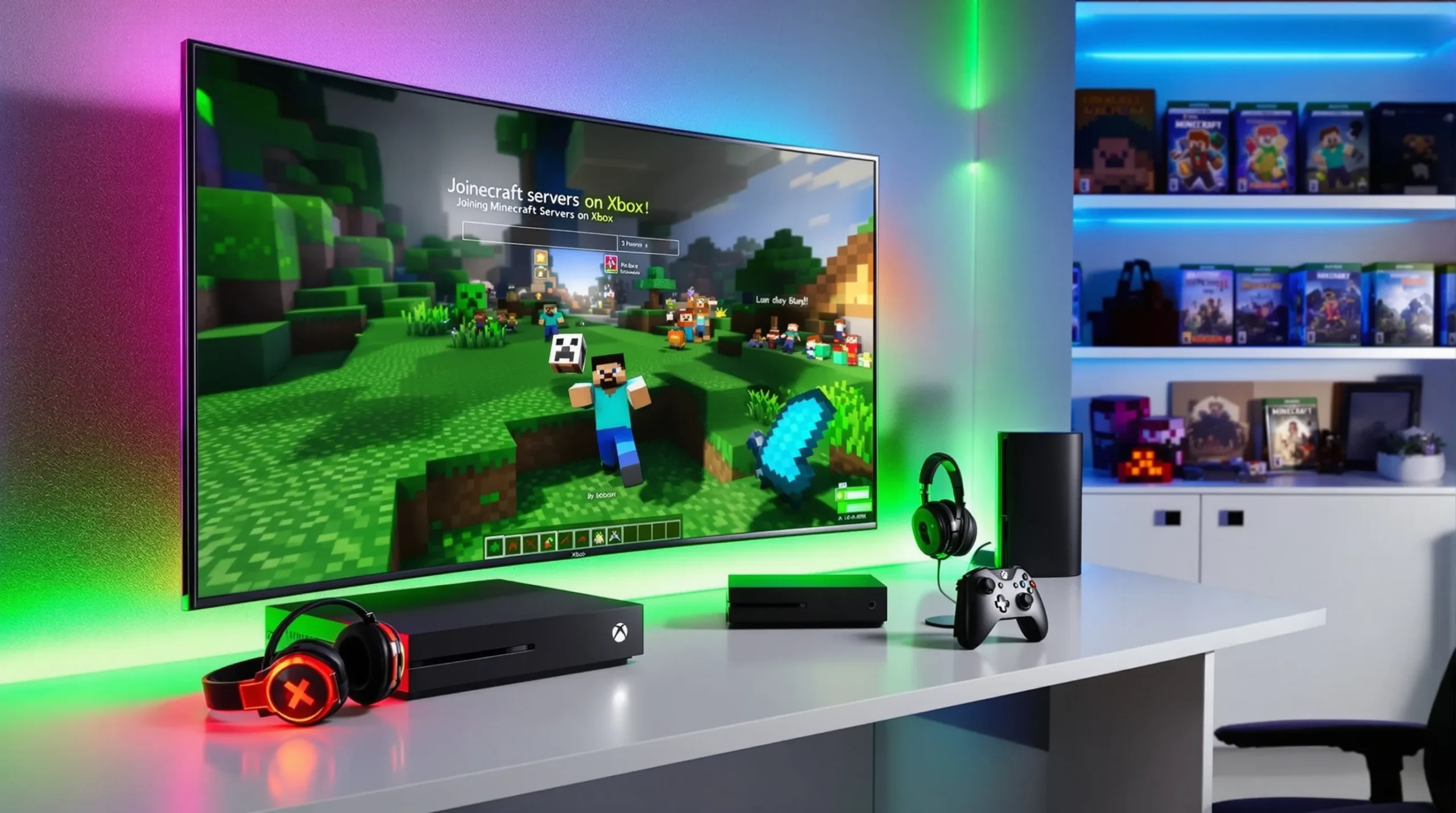
Picture this: You’re sitting on your couch, Xbox controller in hand, heart pounding as you stare at the Minecraft menu. You’ve heard stories about wild minigames, epic builds, and friends from around the world. But every time you try to figure out how to join servers on Minecraft Xbox, you hit a wall. If you’ve ever felt left out or frustrated, you’re not alone. The good news? Joining servers on Minecraft Xbox is easier than you think—once you know the steps. Let’s break it down, so you can jump in and play with others tonight.
Why Join Servers on Minecraft Xbox?
Here’s the part nobody tells you: Minecraft is fun solo, but it’s a whole new world with others. Servers let you play custom games, join massive builds, and meet players who turn into friends. If you’re tired of wandering your own world, joining servers on Minecraft Xbox is your ticket to something bigger. You’ll find everything from parkour challenges to survival games, and even roleplay cities where you can pretend to be a mayor or a shopkeeper. The possibilities are wild—and you don’t need to be a tech genius to get started.
What You Need Before You Start
- Minecraft Bedrock Edition on Xbox (not Java Edition—Xbox only supports Bedrock)
- An Xbox Live account (free or paid, but you need one to play online)
- A stable internet connection
- Optional: Microsoft Family settings adjusted to allow multiplayer (if you’re under 18, ask a parent)
If you’re missing any of these, you’ll hit a roadblock. Double-check before you dive in.
How to Join Servers on Minecraft Xbox: Step-by-Step
Step 1: Launch Minecraft and Sign In
Open Minecraft on your Xbox. Make sure you’re signed in to your Xbox Live account. If you see your Gamertag in the top right, you’re good. If not, sign in before moving on.
Step 2: Navigate to the “Play” Menu
From the main screen, select “Play.” You’ll see three tabs: Worlds, Friends, and Servers. This is where the magic happens.
Step 3: Select the “Servers” Tab
Click on the “Servers” tab. Here, you’ll see a list of featured servers. These are official, safe, and packed with players. Some popular options include:
- The Hive – Minigames galore
- Mineplex – Classic games and creative builds
- Cubecraft – Parkour, PvP, and more
Scroll through and pick one that sounds fun. If you’re new, start with The Hive or Mineplex—they’re beginner-friendly and always busy.
Step 4: Join a Server
Highlight the server you want and press “Join Server.” Wait a few seconds. You’ll load into a lobby with other players. That’s it—you’re in!
Step 5: Explore and Play
Once you’re in, you’ll see signs, portals, or menus for different games. Walk up to one, press the action button, and you’ll jump into a minigame or world. Don’t worry about messing up—everyone’s learning, and most players are friendly.
Can You Add Custom Servers on Minecraft Xbox?
Here’s where things get tricky. On PC, you can add any server you want. On Xbox, you’re limited to the featured servers in the menu. Microsoft keeps it this way for safety and performance. If you see YouTube videos about adding custom servers on Minecraft Xbox, most involve third-party apps or changing your network settings. These methods can be risky, may not work after updates, and could even get you banned. If you’re not a tech whiz, stick to the official servers for now.
Common Problems (And How to Fix Them)
- Can’t see the Servers tab? Make sure you’re on Bedrock Edition, not Java. Java doesn’t run on Xbox.
- Getting a “You cannot play online multiplayer” error? Check your Xbox Live account settings. If you’re under 18, you might need a parent to allow multiplayer in Microsoft Family settings.
- Lag or disconnects? Test your internet speed. Wired connections are more stable than Wi-Fi. Restart your router if needed.
- Server won’t load? Sometimes servers are down for maintenance. Try another one or wait a few minutes.
If you’ve tried everything and still can’t join servers on Minecraft Xbox, check the official Minecraft support page or Xbox forums. You’re not the only one, and there’s usually a fix.
Tips for Making Friends and Having Fun
Joining servers on Minecraft Xbox isn’t just about playing games—it’s about meeting people. Here’s what works:
- Say hi in chat. Most players are happy to help newcomers.
- Join a minigame and stick around for a few rounds. You’ll start to recognize names.
- Don’t be afraid to ask questions. Everyone started somewhere.
- If someone’s rude, use the mute or report feature. Don’t let trolls ruin your fun.
Remember, the best moments come from unexpected teamwork or hilarious fails. If you mess up, laugh it off. That’s what makes Minecraft servers special.
Who Should (and Shouldn’t) Join Servers on Minecraft Xbox?
If you love meeting new people, trying new games, or just want a break from solo play, joining servers on Minecraft Xbox is for you. If you prefer building quietly or don’t like online chat, you might be happier in your own world or with a few friends in a private game. There’s no right answer—just what feels fun for you.
What’s Next? Level Up Your Minecraft Xbox Experience
Now you know how to join servers on Minecraft Xbox, you’re ready for the next step. Try different servers, find your favorite games, and maybe even invite friends to join you. If you get stuck, remember: every expert was a beginner once. The only way to get better is to jump in and play. Who knows? Your next Minecraft adventure could start tonight.