troubleshooting common gaming problems starts with a focused check. When a game lags, crashes, or loses audio, the gamer needs a quick path to rule out obvious causes. This guide gives clear, prioritized steps a player can follow now: isolate the scope, test hardware and network, and apply targeted fixes. It avoids fluff and lists reproducible actions that save time and reduce frustration.
Key Takeaways
- Troubleshooting common gaming problems starts with isolating the issue scope and rebooting devices to clear transient faults quickly.
- For network issues like lag and matchmaking errors, switch to wired Ethernet, power-cycle the router, and check packet loss to stabilize online play.
- Address performance problems such as crashes and low FPS by monitoring CPU/GPU temperatures, cleaning hardware, and updating or rolling back drivers as needed.
- Fix audio drops and controller drift by reinstalling drivers, checking device settings, and recalibrating input devices for smooth gameplay.
- Regular preventive maintenance, including updating drivers, verifying game files, and cleaning dust, significantly reduces gaming interruptions and enhances system reliability.
Quick Diagnostic Checklist: What To Do First When a Game Misbehaves
Fact: The fastest way to narrow a problem is to isolate scope and reboot. Start by testing another game or app to see whether the issue is game-specific or system-wide. Note exact error messages and when the problem occurs (startup, map load, long sessions).
Steps to run in order:
- Reboot the PC/console and the game client. A simple restart clears transient faults.
- Check game server status and outage trackers before digging into local fixes. Server-side failures remove local causes.
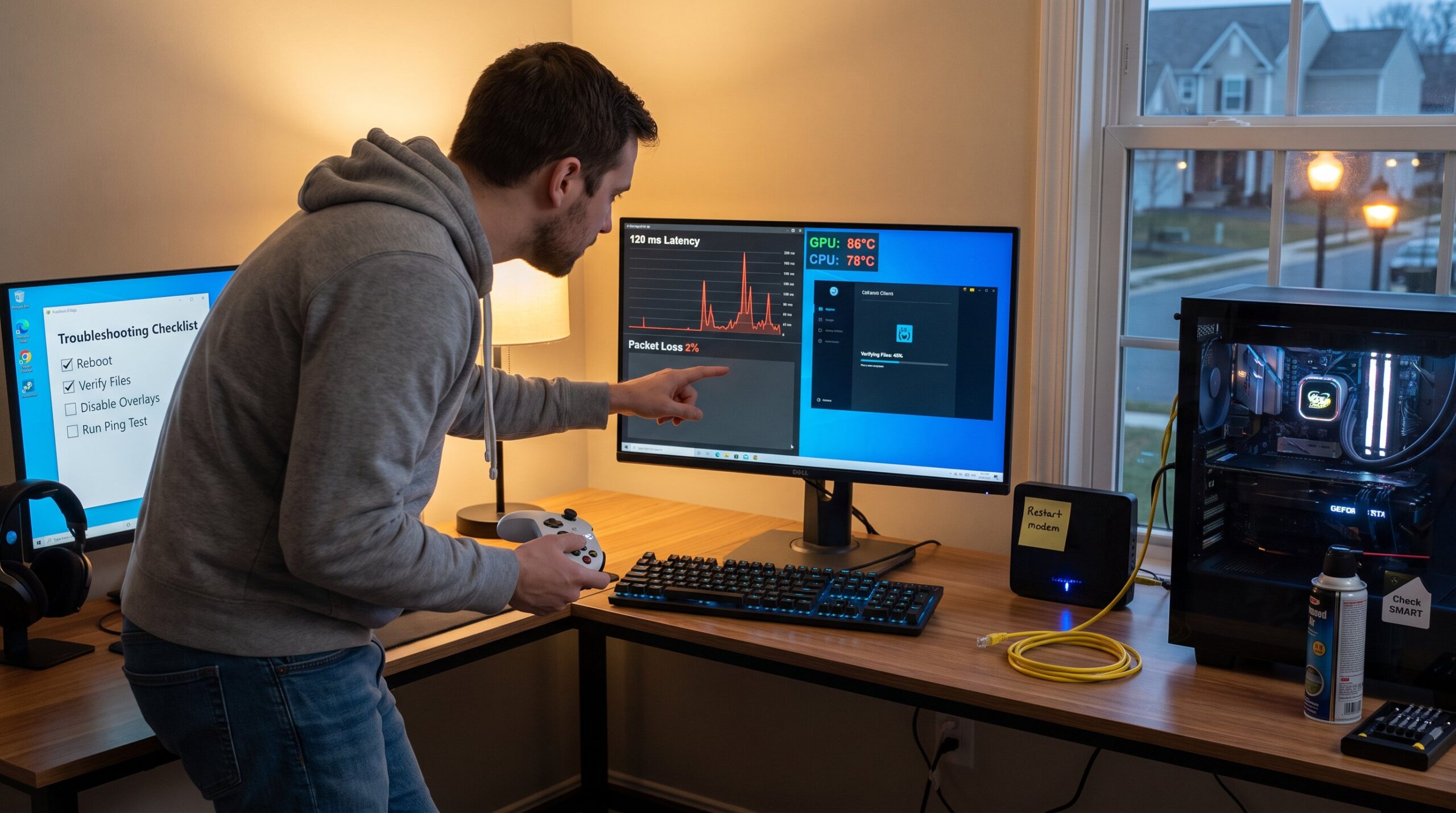
- Run a quick internet speed and ping test: record latency and packet loss numbers.
- Update the game, launcher, GPU drivers, and OS. Then use Steam or Epic integrity tools to verify game files.
- Disable overlays, RGB utilities, and heavy background apps that can inject hooks or hog CPU.
- Monitor CPU/GPU temperatures briefly while launching the game: flag anything above 85°C for further thermal checks.
Concrete example: A player reported 120 ms spikes on match start. After a reboot and integrity check the spikes disappeared, an overlay process had been injecting network hooks. That saved a one-hour hardware hunt.
Practical warning: Never skip the integrity check step: corrupted files can present as crashes, low FPS, or audio drops. If these core steps don’t clear the issue, proceed to targeted troubleshooting by subsystem.
Network And Online Play Issues: Solving Lag, Packet Loss, And Matchmaking Errors
Answer: Wired Ethernet and a router power cycle fix a surprising share of network problems. When lag or matchmaking errors appear, shift to Ethernet first and power-cycle the modem/router for 60 seconds.
Why this works: Wi‑Fi introduces variable latency and packet loss: a fresh router reboot clears NAT translation and stale routing tables. If the game still shows high ping, run continuous ping tests to the game server and note packet loss percentage. Packet loss above 1–2% often causes stuttering or disconnects.
Further steps:
- Check and change matchmaking region if matches consistently lag: some regions show server-side load spikes.
- Ensure NAT type is Open/Moderate. If NAT is Strict, guide the router to enable UPnP or port forwarding for the console or PC.
- Temporarily disable VPNs and strict firewalls that may block game ports.
- Use QoS on the router to prioritize gaming traffic when multiple devices share the connection.
Tools and checks: A player measured 4% packet loss with a basic ping tool: switching from a crowded 2.4 GHz Wi‑Fi channel to wired cut packet loss to 0.1% and stabilized matchmaking. For deeper reading on stutter diagnosis in PC games, an authoritative troubleshooting article gives targeted tests for stuttering and frame pacing problems, which can help isolate network vs local causes: stutter troubleshooting.
Context link: For readers building a longer troubleshooting workflow and broader tech how-to guidance, the site maintains a central resource that ties gaming fixes into broader hardware and setup advice via a detailed pillar page: site overview.
Performance And Hardware Troubles: Crashes, Low FPS, Overheating, And Peripheral Problems
Answer: Monitor temps and utilization: most crashes and low FPS trace to thermal throttling, driver issues, or corrupted runtimes. Run a brief stress test while watching CPU/GPU temps and clock rates.
Concrete checks:
- If temperatures exceed safe limits (CPU/GPU above 85°C under load), stop testing. Clean dust, improve airflow, and consider reapplying thermal paste. One community lab measured a 12°C drop after reseating a GPU cooler and cleaning dust.
- Lower in-game settings, shadows, ray tracing, and anisotropic filtering first, and use any built-in performance mode to check if low FPS improves.
- Reset overclocks to stock. Overclocks may hide as intermittent crashes.
- Test RAM with memtest tools and run a GPU stress test: check storage SMART data for early SSD/HDD failure signs.
- Reinstall DirectX and Visual C++ runtimes, then roll back or reinstall GPU drivers using a clean installer option if artifacting or crashes began after a driver update.
Linking internal resources: For game-specific low-FPS guidance and file-verification steps, a troubleshooting write-up for a popular strategy title explains targeted fixes for similar symptoms and can provide practical verification steps: fps troubleshooting guide.
Real lesson: A reader tried endless driver swaps until a storage SMART warning revealed a failing NVMe drive. The real fix was replacing the drive: software tweaks only temporarily masked texture streaming errors. Preventive tip: schedule SMART checks monthly to catch issues before crashes.
Audio, Input, And Visual Glitches: Fixing Sound Drops, Controller Drift, And Display Artifacts
Answer: Reinstall drivers and isolate devices. For audio drops, confirm the output device and reinstall the audio driver. For controller drift, recalibrate or test a different controller.
Step-by-step actions:
- Audio: Open OS sound settings and confirm the correct output device. If game audio stutters or drops, update/reinstall the audio driver and check in-game audio format settings. Try switching from surround to stereo to rule out codec mismatches.
- Controller drift: Recalibrate the controller in OS settings or the console menu. Update controller firmware if available. If drift persists, test a second controller to confirm hardware failure.
- Visual artifacts: Check GPU drivers and test different display cables/ports. Artifacts that persist across displays usually indicate GPU hardware stress or failing VRAM.
Examples and warnings: A competitive player experienced intermittent audio cutouts only when RGB lighting software ran. Disabling the RGB utility removed the audio driver conflict. Another user swapped HDMI for DisplayPort and resolved color banding that had appeared after a driver update, sometimes a simple cable change isolates port-specific issues.
Related internal links: For low-spec laptops or different hardware constraints that affect audio or visuals, readers can reference curated lists of playable titles and optimized settings: laptop games list. For skill-focused multiplayer tweaks that reduce perceived input lag, a strategy article covers practical play adjustments: multiplayer strategies.
Conclusion: When To DIY, When To Seek Support, And Preventive Steps To Avoid Future Problems
Insight: Basic configuration, driver updates, moderate thermal fixes, and network tweaks are safe DIY tasks. Persistent hardware errors (SMART warnings, repeat artifacting, or thermal runaway) require professional or manufacturer support.
When to escalate: If crashes show hardware error codes, temperatures stay dangerously high after cleaning, or storage SMART flags multiple reallocated sectors, stop and contact support or warranty service.
Preventive checklist:
- Keep drivers and OS current and verify game files monthly.
- Clean dust and monitor temps: set reminders for thermal maintenance.
- Prefer wired networking for consistent latency and use QoS when needed.
- Back up save data regularly: use simple versioned backups to a second drive or cloud.
Additional resources: For a beginner who wants structured help across hardware and how-to topics, an introductory walkthrough on the site explains where to find curated tech help and step sequences: getting started guide. For locating more gaming articles, the site index helps readers follow the latest fixes and recommendations: latest gaming articles.
Final note: Regular maintenance prevents most interruptions. A single monthly check, drivers, temps, and file integrity, eliminates many surprises and frees time for play.